Turn a Recipe Collection into a Magazine-Style PDF Book
Publish a recipe collection as an A4 book with a cover, chapters, photographs and the calculated indicators you choose. What the editor controls, where its limits sit, and what the finished PDF contains.
A Book Is Not a Data Sheet
A recipe book is a presentation document; a recipe PDF is a working one. Both leave Formul.io as A4 files, and they answer different questions. The single-recipe export described in Recipe PDF Export tells a pastry chef at the bench exactly which saved version of one formulation is in front of them. A book is for a reader — a student, a client, a colleague on another site, a competition jury — who takes in a whole collection in order, with a cover, a contents page, chapters, photographs and page numbers.
That difference decides what each document carries. A recipe PDF stamps the version and workflow status it was taken from. A book carries no version line: it renders each recipe as it stands the moment you generate the file, and the artefact you hand over is the PDF itself. If a recipe changes afterwards, the book on someone’s desk does not.
Recipe books are part of Pro. On a plan that includes them, open a recipe collection and Build a book appears in its ⋮ (More) menu, beside Share, Edit and Delete. Everything after that happens in one editor, and nothing you do there changes the underlying recipes.
| Question | Recipe PDF export | Recipe book |
|---|---|---|
| Scope | One saved recipe | One collection, arranged into chapters |
| Audience | The bench, a handover, a formulation review | A reader: student, client, colleague, jury |
| Version stamp | Printed in the header, with workflow status | None — the file is the artefact |
| Photographs | Not included | Cover, chapter and per-recipe, with captions |
| Calculated results | The saved metrics of that recipe | Only the indicators you tick, recipe by recipe |
| Plan | Every plan | Pro |
Two A4 documents, two jobs. Choose by who reads the result.
What a book does not do
The book renders recipes, your own chapter text and the indicators you select. It does not price a product, build an allergen declaration or a nutrition label, certify anything, or replace the controlled documents your business is required to keep. Treat it as an editorial publication and keep compliance work in the process that owns it.
Before You Start
A collection that holds the right recipes. A book can only use recipes belonging to the collection it was started from; the picker inside the editor offers nothing else. If a recipe leaves the collection after you place it in a chapter, the entry turns red and reads Recipe is no longer in this collection, and the book will not generate until you remove it.
Recipes that have been calculated and saved. Indicators come from saved calculator results, not from a fresh calculation at export time. When a recipe was edited after its last calculation, the editor says Recalculate this recipe before including its indicators and generation stops rather than printing a number that no longer matches the formula.
Photographs at hand. None are mandatory, but a book with no cover shot and no recipe images reads as a list. Collect them first.
Open the collection
Open My Recipe Collections and open the collection you want to publish. Confirm its recipe list is the set you intend to print.
Choose Build a book
Open the ⋮ (More) menu in the collection header and choose Build a book. The editor opens on a draft, not on an empty page.
Check the starting draft
The book title starts as the collection name, and one chapter called Recipes already holds every recipe in the collection, in the collection's own order.
Work through the left rail
Book structure lists Cover, Appearance and your chapters. Selecting an item swaps the editor on the right; the rail is also where you reorder chapters and recipes.
Save the draft as you go
Save draft stores the book with its collection. The status line reads Unsaved changes or All changes saved, and leaving with unsaved work raises a warning.
The Cover and the Look
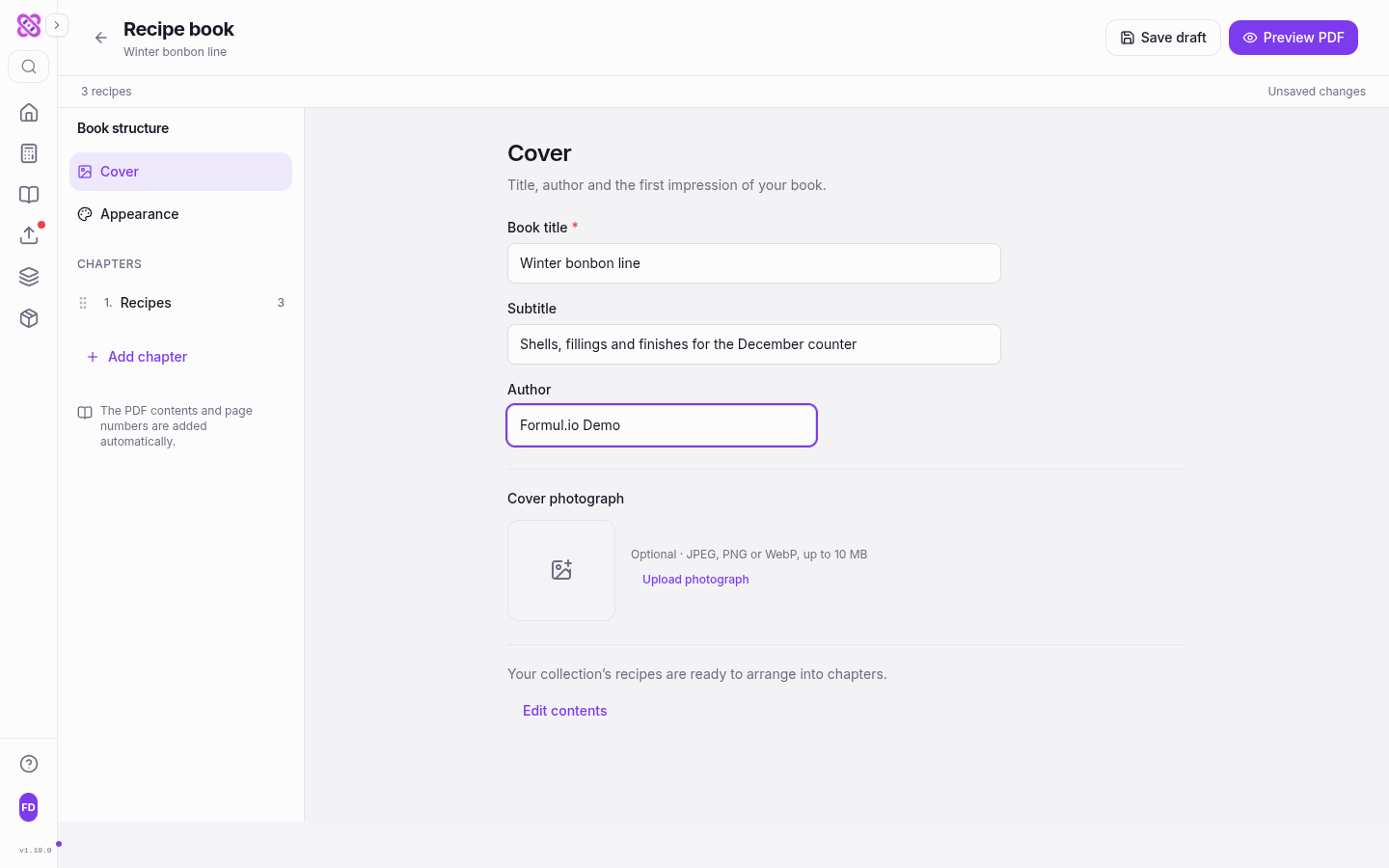
Cover holds four things. Book title is required — it prints on the cover and names the downloaded file. Subtitle is the line beneath it, the right place for the edition, the season or the range. Author prints on the cover, above the contents list, and again in the running footer of every page, so use the name you want repeated throughout. Cover photograph is optional; without one the cover is typeset on the accent colour.
Appearance is deliberately short, because the layout is fixed and fewer choices make a series of books look like a series.
| Control | Choices | What it changes |
|---|---|---|
| Book language | English, Русский, Español | The printed labels only — Contents, Chapter, Recipe, Ingredients, Method, units. Your own titles and text stay as written |
| Accent | Cocoa, Berry, Forest | Headings, rules and the cover ground across the whole book |
| Magazine layout | Fixed | A4 portrait, digital PDF. Page breaks, the contents page and page numbers are produced automatically |
Three appearance decisions; the rest of the layout is handled for you.
Book language is independent of the language you use the app in, so an English-speaking chocolatier can publish a Russian edition without changing their own interface: write the chapter text in the target language and set the book language to match.
Chapters and Recipes
A chapter is a piece of writing, a group of recipes, or both. Add chapter appends a new one; each needs a title, and a book will not save or preview while any chapter title is empty.
Chapter text is written in a small formatted editor — bold, italic, bulleted and numbered lists — and holds up to 50,000 characters. That is room for a real introduction: the story of a range, the reasoning behind a set of ratios, storage and service notes. Paste from a word processor and the formatting is cleaned down to what the book can typeset.
Add recipes opens a picker over the collection, with Find in collection to filter by name. Tick what belongs in this chapter and confirm; a recipe already in that chapter is not offered again. A book holds up to 100 recipe entries across all chapters, and the picker stops you at the remaining count rather than failing later.
Order is set by dragging the handle beside each chapter and recipe entry in the left rail. Keyboard reordering works too: focus a handle, press Space to pick the item up, move it with the arrow keys, then Space to drop it or Escape to cancel.
Two controls live on the recipe panel itself. The Chapter dropdown moves that entry elsewhere, and Remove recipe from this chapter takes it out of the book. Neither touches the source recipe, and Open original recipe jumps to it. Deleting a whole chapter behaves the same way: the arrangement goes, the recipes stay in the collection.
Photographs and Calculated Indicators
Photographs are what make a book read as a book, and there are three places for one: the cover, the head of each chapter, and each recipe. All accept JPEG, PNG or WebP up to 10 MB, and a large original is prepared in the browser before upload, so a file straight from the camera is fine.
Once a photograph is in place, Adjust opens its settings. Two sliders set the horizontal and vertical crop position, which is how you keep the subject in frame when a wide shot is cropped into a portrait block. The Caption is printed under the photograph and used as its alternative text, so write something a reader gains from: the component shown, the stage, the finish.
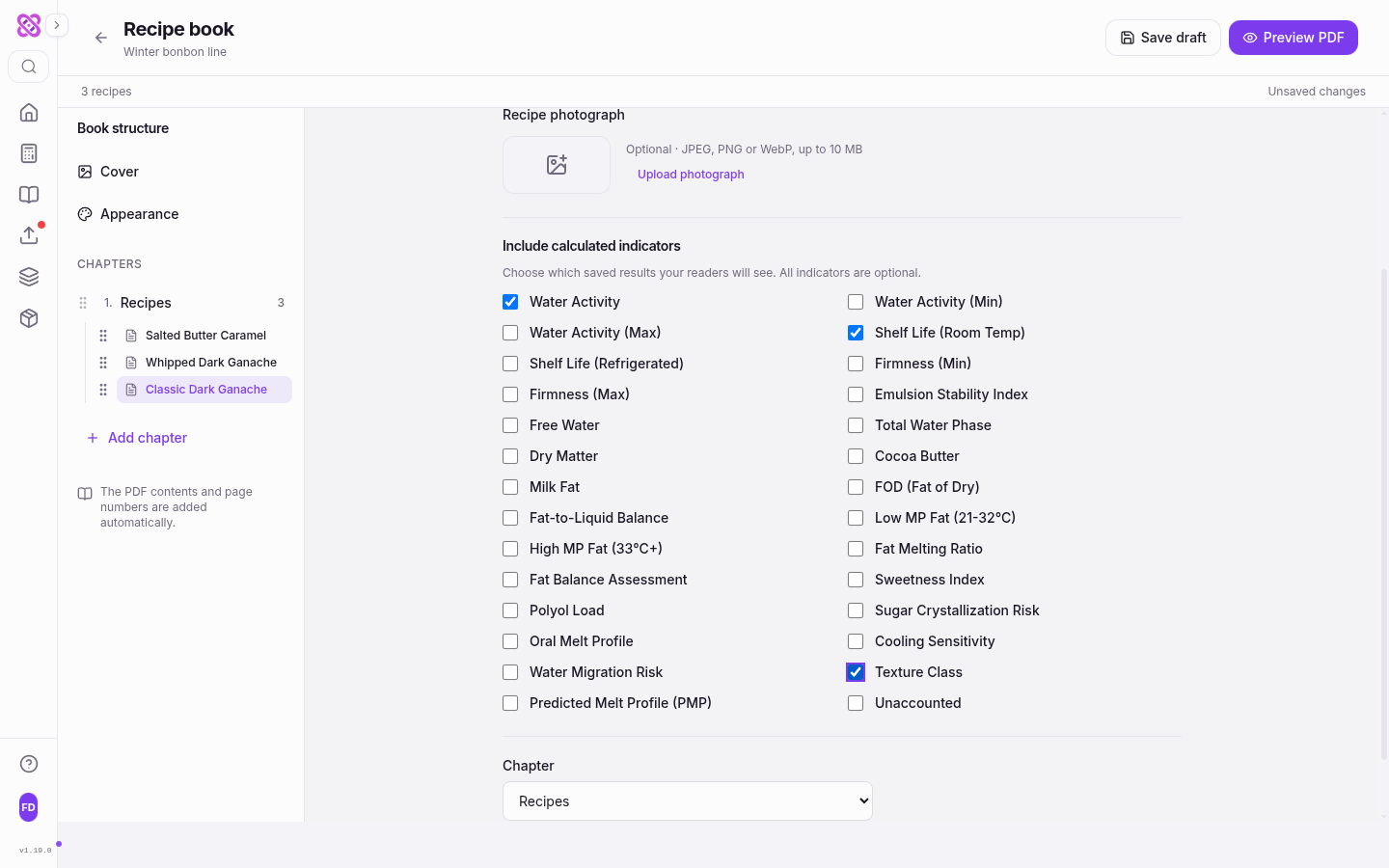
Include calculated indicators is the part no typesetting tool can do for you. Each recipe panel lists the indicators its calculator produces — water activity, shelf life, firmness, fat balance, sweetness and others, depending on the calculator — and every one is optional. Tick nothing and the recipe prints as text, ingredients and method. Tick three or four and they print as a compact block under the recipe title, formatted and labelled in the book language.
Choose few, and choose deliberately
A page with two indicators is read; a page with fifteen is skipped. Pick the numbers that justify the formulation to that particular reader — water activity and shelf life for a keeping product, firmness and melt for an eating one — and leave the rest in the app. Every number you publish is the saved result of a specific calculation, so recalculate and save before you generate the final file.
Preview, Then Download
Preview PDF builds the real file, not an approximation: one renderer produces both the preview and the download. Building takes a moment, longer with many photographs, and the pane then shows one page at a time with a Page 1 of 6 counter and arrows to move through it. Open PDF preview opens the same file in a new browser tab.
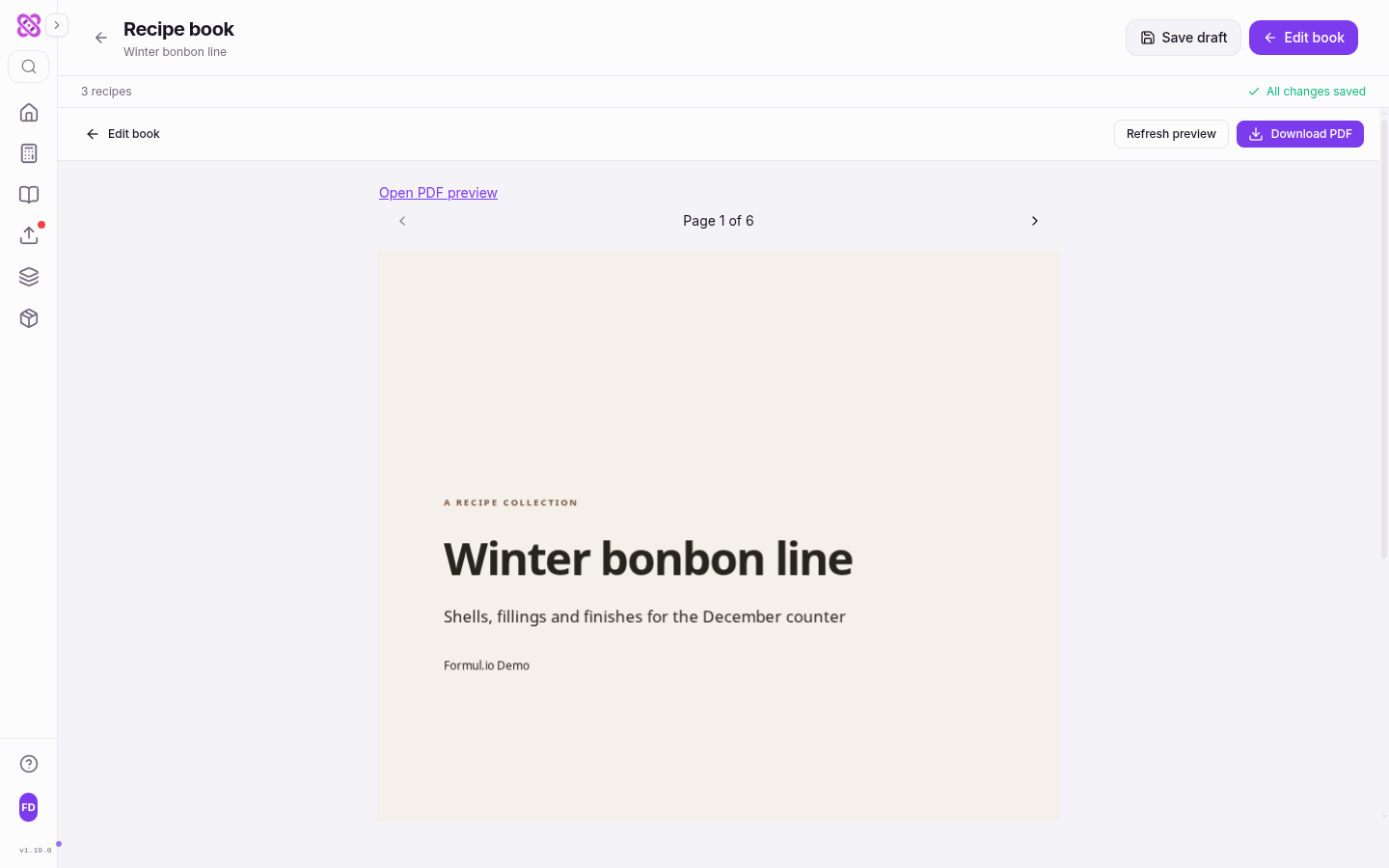
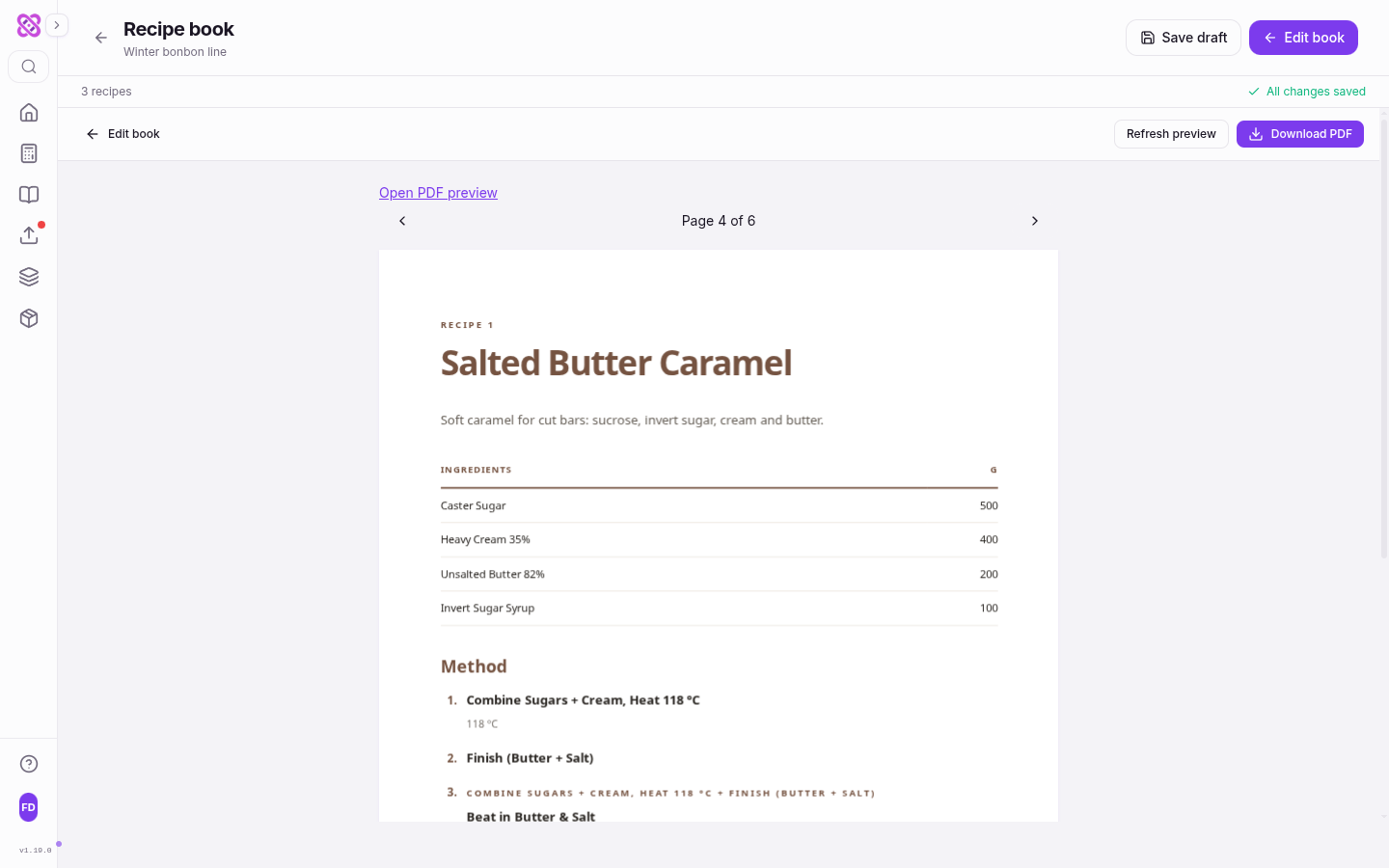
Keep reading past the cover. The contents page lists every chapter and recipe with its page number, each chapter opens with a title page and photograph, and each recipe prints as a spread of its own: title, description, photograph, the indicators you ticked, the ingredient table in grams, and the method as numbered steps. A recipe built on another saved recipe prints that component’s ingredients and method underneath, so the reader never needs a second document.
Edit and preview alternate as often as you need. Edit book returns to the editor with the preview kept; once the draft has moved on, the pane says The book has changed. Refresh the preview before downloading and Download PDF stays disabled until Refresh preview rebuilds it. That makes it impossible to hand over a file showing an earlier draft.
Download PDF saves the file under the book title. Every page except the cover carries a footer with the author name — or the book title, if you left the author empty — followed by Made with Formul.io, and the page number in the opposite corner. Save the draft before you leave: the book is stored with its collection, so the next edition is an edit rather than a rebuild.
Questions and Limits
Do I need Pro to build a recipe book?
Can I add a recipe that is not in the collection?
Why is the Download PDF button disabled?
Why can I not include an indicator for one of my recipes?
Does editing a recipe update a book I already downloaded?
How large can a book be?
Related Topics
Related Articles
Recipe PDF Export: A Reliable Production Snapshot
Turn a saved recipe into a clear A4 snapshot for the bench, handover, or review. See what is included, how scale and print choices carry over, and what still needs independent verification.
Lot Numbers and Traceability for Small Confectionery Producers
Set up lot numbers and one-step-back, one-step-forward traceability for a small confectionery kitchen: what counts as a lot, what each batch record needs, how to mark the pack under EU rules, and how to rehearse a recall.
Scaling Recipes for Production: From Lab Batch to Commercial Run
A practical guide to scaling confectionery recipes from 500 g test batches to 50 kg production runs. Covers what scales linearly, what does not, equipment planning, and process parameter adjustment.