From Ingredient Prices to Selling Price: Costing and Margins in Formul.io
Save what you actually pay for each ingredient, add work, overhead and packaging, then read the margin a price really earns — a private costing layer that sits on top of the recipes you already keep in Formul.io.
What Gets Costed, and What Stays Private
A recipe in Formul.io already knows what it is made of. Costing adds the one thing the catalogue cannot know: what you pay. The shared catalogue supplies identities and composition; your account supplies prices, hourly rates, overhead and packaging amounts. Nothing is inferred from an average market price, and an ingredient with no saved price counts as unknown, not as zero.
You open costing from the Economics tab of a saved recipe. The heading reads Cost to prepare for a recipe and Cost and selling price for a finished product, and a toolbar underneath carries three tabs — Costing, History and Saved calculations — with one Save costing action for the whole draft.
Everything you enter there is yours alone. Sharing or cloning a recipe hands over the formula, not your prices, labour rates, import column mappings or saved calculations. A public product page carries no costs at all.
Costing and margins is a Pro module
The costing workspace, My prices and My costs and rates are part of the Pro Costing & margins module. The ingredient catalogue, the calculators and recipe storage stay available without it — costing is an extra layer on top, not a gate in front of the formulation work. Your prices, rates and results stay private to your account whatever your plan.
My Prices: Save Each Ingredient Price Once
Prices live in one place, My prices, reachable from the costing header or from any ingredient page. The page lists every price you have saved with its pack price, pack size and purchase date, and offers two ways in: Add price for a single ingredient, Import for a supplier list.
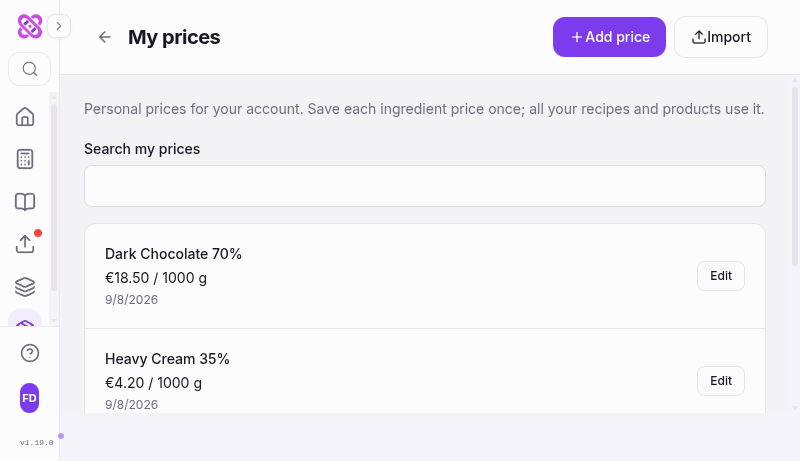
The first time you price an ingredient you enter the pack you actually buy: Pack quantity, Unit (g, kg, oz or lb) and Pack price in your account currency. Later updates reuse that pack, so a routine change is one number and a date, and Purchase date already defaults to today.
Behind a Source, tax and preparation yield disclosure sit the details that change the cost a recipe actually sees.
| Field | What it means | When to touch it |
|---|---|---|
| Pack quantity and Unit | The pack you buy, in grams, kilograms, ounces or pounds | First time you price the ingredient, or when you switch pack size |
| Pack price | What the pack costs, in your account currency | Every update |
| Purchase date | The date this price applies from; defaults to today | Backdating an invoice you are entering late |
| Source (optional) | Supplier or document name, shown beside the price | When you buy the same ingredient from more than one place |
| Purchase tax, % | With switches for tax included in the price and tax you can recover | Once per ingredient, when your tax treatment is settled |
| Preparation yield, % | Losses before the ingredient reaches the recipe — trimming, peeling, sieving | Leave it at 100% when the recipe already accounts for those losses |
What a saved ingredient price records
Each saved price keeps its own history. Open Price history on an ingredient and you get the full run of observations, each with its pack, currency, purchase date and source, the rise or fall against the one before it, and a Price trend chart of Purchase price per kg over time. When purchase tax or preparation yield changes the number a recipe uses, the entry shows Cost per usable kg separately, so the two are never confused.
An older date does not quietly become your current price
Saving a price dated earlier than the one already stored asks for an explicit confirmation — Use these older dated prices as my current prices — because the last price you deliberately saved is the one every recipe uses. Comparisons normalise pack sizes to kilograms, and a price in a different currency or under a different tax treatment is shown without a change figure rather than compared as if it were like for like. There is no automatic currency conversion anywhere in costing.
If your account also receives stock through Formul.io, a recorded purchase can supply a price for an ingredient you never priced by hand — such rows are labelled Purchase with their date and supplier, and a price you save yourself always takes priority.
Importing a Supplier Price List
Retyping a distributor’s list is exactly the work the importer removes. Import accepts a CSV or XLSX file, or a table pasted straight out of a spreadsheet. Documents and web links are not read here — this is a table reader, not an extraction engine.
Upload or paste the list
Choose Upload CSV/XLSX or use Paste a price table. A Source name — the supplier or the document — helps you recognise repeat imports later, and is optional.
Preview prices
The importer reads the table and proposes a column mapping. Nothing is saved at this stage; a preview never writes a price or a mapping.
Confirm the columns
Change column mapping exposes Name column, Price column, Pack quantity column, Unit column, and the optional Currency column and Price date column. Pick a different worksheet if the file has several, then Update preview with these columns.
Clear the exceptions
A summary reads Ready: N · Needs attention: M, and the list opens on the rows that need you — an unmatched ingredient name, a missing amount, an unsupported unit, a foreign currency, a date older than your saved price. Matched rows are already selected.
Save selected prices
Save selected prices (N) writes only the rows you approved. The ingredient name mappings are remembered for your account, so the next list from the same supplier arrives mostly resolved.
Batch Output: What You Can Actually Sell
Cost per kilogram is meaningless until the denominator is honest, and the Saleable output card is where you make it honest. Cooking loss is already in the recipe’s own output, so this section covers only what happens afterwards.
Items in this batch (optional) is the count you sell — the real number of bonbons, bars or jars, entered before any further losses. Leave it empty when you sell by weight or by the batch; fill it in and the whole calculation switches to a per-unit basis, including packaging charged per unit.
If the pan gave you less than the arithmetic predicted, Enter measured output replaces the calculated figure with Measured batch output, g, and Use calculated output puts it back. Add handling loss or rejects then reveals two percentages applied in order: Handling loss, % for what disappears between the pan and the packing bench, and Rejects after packaging, % for finished items that never reach a customer. Rejects come off saleable output last, and sale commissions and sales tax apply only to what you actually sell.
Work, Overhead, Packaging and Batch Extras
Work time counts person-minutes, not elapsed time — waiting, setting and cooling are not added for you. A simple batch needs one number in Active minutes for this batch, charged at your default rate. Split into separate tasks divides the work into named tasks, each with its own minutes, hourly rate and Applies to basis — per batch or per unit.
Packaging holds everything that is neither ingredient nor labour: boxes, ribbon, sleeves, a courier run, a one-off consumable. Amounts you use repeatedly are better saved once as an account rate and then added here with Add to this cost; anything genuinely singular goes in through Add a one-off expense.
The account defaults those sections lean on live on My costs and rates.
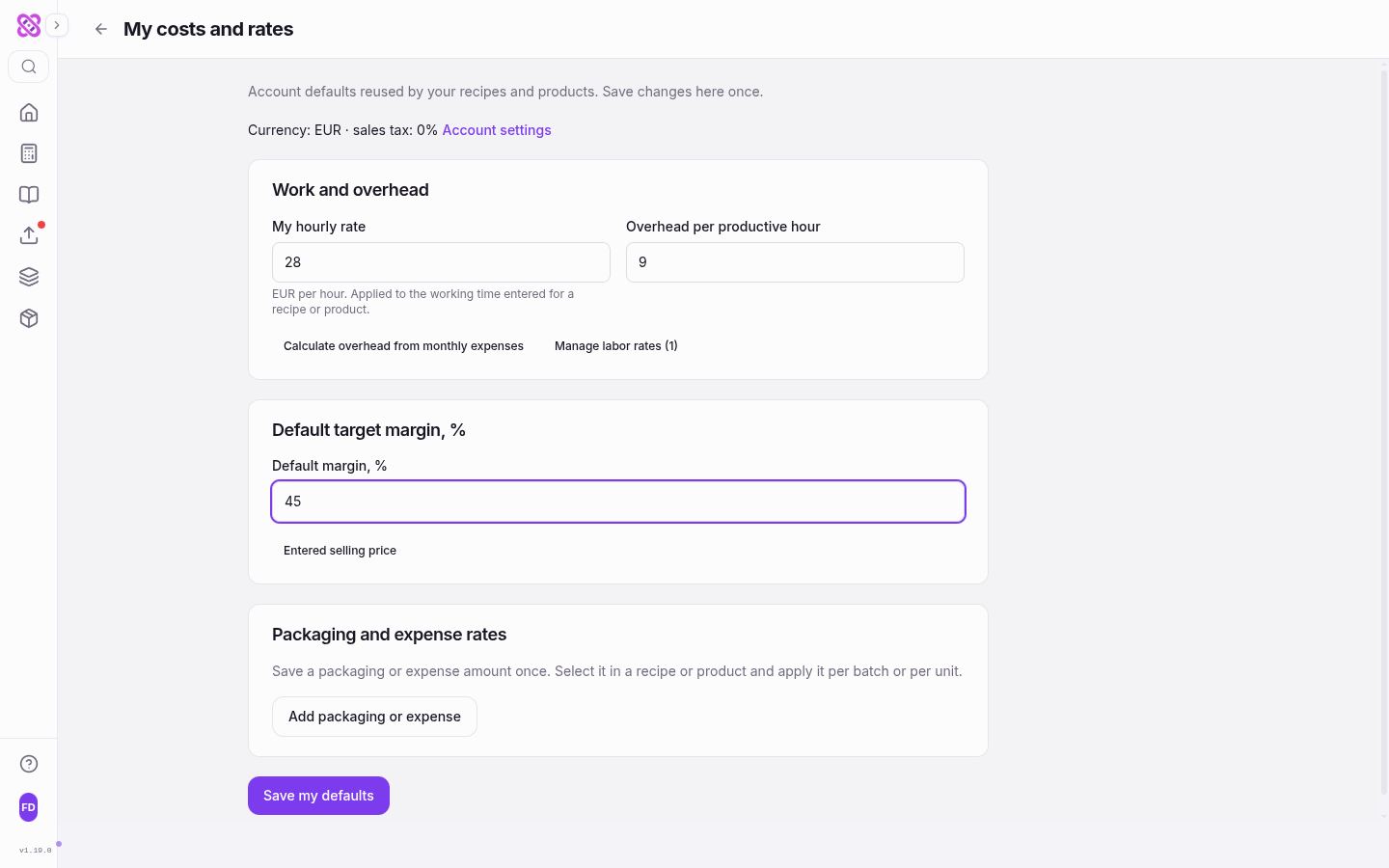
My hourly rate is applied to the working time entered in any recipe or product. Overhead is allocated per productive person-hour: enter it directly as Overhead per productive hour, or use Calculate overhead from monthly expenses to divide a list of monthly costs by your planned productive hours. Rent, power, insurance and depreciation belong there — but only once. A cost already entered as labour or as a direct expense must not be repeated as overhead, or every batch quietly pays for it twice.
Default margin, % seeds the target on every new calculation, and Packaging and expense rates stores the amounts you reuse. Saved amounts flow through to dependent recipes and products when you change them; already saved calculations keep the figures they captured.
Trying a Selling Price and Reading the Margin
The Cost card sits beside the inputs on a wide screen and below them on a phone, where the line at the top of the tab leads down to it; it updates as you type. With every price in, it leads with Batch cost — Ingredient cost while nothing else is in the cost — then Cost per kg, and Cost per piece once Pieces in this batch is filled; the split across Ingredients, Labor, Packaging, Overhead and Other expenses follows, and Cost breakdown expands it into individual lines. While prices are missing the card reads At least the cost known so far, with how many ingredients are priced and Add missing prices. Any other missing value is named with a button that leads to its field, so the calculation says what it is waiting for rather than quietly rounding it to nothing. Categories the cost leaves out are marked optional, and a finished cost reads Complete cost.
The Selling price card follows the order a price is decided in. Margin you want comes first: 50, 60, 67 or 75%, each shown with the multiple of the cost it means (60% · ×2.5), or Other margin for any value; Use this margin for all my recipes makes it your default. Against a complete cost the card then offers Recommended for a 60% margin — whatever your target is — with Use suggestion to copy that figure into the price field. While only ingredient prices are missing it gives At least, for a 60% margin instead: a floor from the prices entered so far, which each missing price can only raise. With no ingredient priced yet, only the margin can be chosen. The price you charge comes last and is read back as its price per kilogram, its margin and its multiple of the cost. Nothing you try is recorded until you press Save costing, and changing an ingredient price never silently rewrites a selling price you chose.
Margin here is measured on revenue excluding sales tax, after production costs and selling costs. Sales tax and fees is where those selling terms live.
| Setting | What it does |
|---|---|
| Sales tax for this calculation, % | Overrides your account rate for this recipe only |
| Entered selling price | Whether the price you typed includes sales tax or has it added on top |
| Commission, % | A marketplace or agent percentage |
| Commission is charged on | Amount paid by the customer, or revenue excluding tax |
| Fixed fee per order | A flat charge per order rather than per item |
| Sale units per order (or batches) | How that flat fee is spread across the units in one order |
The selling terms behind the margin figure
Some combinations have no answer: a target margin that a commission structure makes unreachable produces no recommendation rather than a fiction. Money is held in exact decimal arithmetic until the final rounding, so the breakdown always adds up to the total.
Costing a Finished Product
A product assembled from several recipes is costed the same way, from inside the product workbench. Its Economics card shows the private cost next to the scientific metrics, and opens the full workspace once the product has been saved.
Two things differ. The product already owns its output quantity and unit, so costing charges gross mass as consumed material, treats net mass as finished output, and takes the per-unit cost from the product’s own unit; only Rejects after packaging, % stays editable. And work is additive: each component recipe contributes the allocated cost of the portion used, including its own work and overhead, so the product adds only its Extra assembly work.
Pinning a component to a saved recipe version freezes its composition. Unpinned links stay live: a change to a recipe, an ingredient or a child product marks the drafts above it for recalculation rather than rewriting a published snapshot.
History and Saved Calculations
Costing keeps a record from the moment you start using it — not a backfilled one. The History tab lists the change points that moved the number: prices, rates and defaults, production costs, composition or output. A chart plots cost per kilogram over time, and picking two points produces a contribution breakdown in a fixed order — prices and rates, then composition and work quantities, then yield — so you can see which of the three actually moved the cost. Periods without a complete calculation appear as gaps, not as invented figures.
Saved calculations is the other half. Saving one freezes the complete input, the prices, the result and the currency of the day, and reading it later returns exactly that — it is never recalculated against today’s sources. That is what makes it usable as the record behind a quotation you gave a customer, and why one requires a complete, saved set of inputs before it can be created.
Questions Confectioners Ask
Do I have to price every ingredient before I see anything?
Can other people see my prices if I share a recipe?
What happens when I buy the same ingredient cheaper next month?
Should overhead include my own wages?
Why is my margin lower than the markup I applied?
Does a saved calculation update when prices change?
Related Topics
Related Articles
How to Cost a Confectionery Recipe: Price per Gram to Food Cost %
Cost a confectionery recipe by hand: price per gram, yield loss, cost per piece, food cost percentage, markup versus margin and break-even, worked through on a batch of dark ganache truffles.
Scaling Recipes for Production: From Lab Batch to Commercial Run
A practical guide to scaling confectionery recipes from 500 g test batches to 50 kg production runs. Covers what scales linearly, what does not, equipment planning, and process parameter adjustment.
Managing Your Ingredient Database: Custom Ingredients and Your Own Prices
Learn how to manage the Formul.io ingredient database, add custom ingredients with composition data and allergen flags, make them easy to find, and keep your own purchase prices current for recipe costing.